
The NivoSearch shortcode lets you add an instant WooCommerce product search bar to almost any location that supports WordPress shortcodes.
Each Search Preset has its own shortcode. When you add a shortcode to your website, NivoSearch displays the search bar using the settings from that preset.
No custom PHP or coding is required.
Before You Begin
Make sure:
- NivoSearch is installed and activated.
- WooCommerce is installed and active.
- You have a published Search Preset.
NivoSearch automatically creates a default Search Preset when the plugin is activated, so you can start using the shortcode without creating a preset first.
Step 1: Open Your Search Presets
From your WordPress dashboard, go to:
NivoSearch → Search Presets
You’ll see a list of all your available Search Presets.
Each preset has its own shortcode.
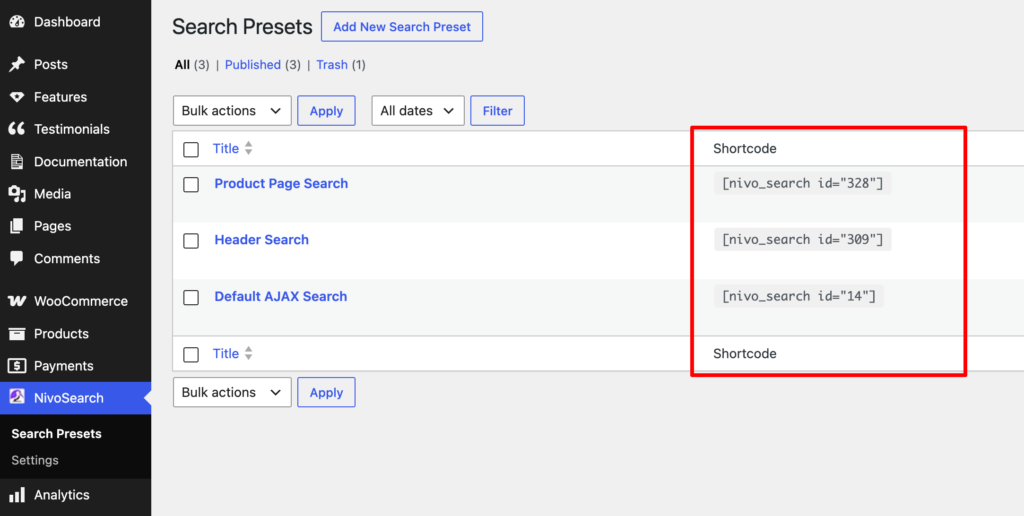
Step 2: Copy the Shortcode
Find the Search Preset you want to use and copy its shortcode.
A shortcode looks similar to:
[nivo_search id="309"]The ID will be different on your website because each Search Preset is stored as its own WordPress post and has a unique ID.
For example, another preset may have:
[nivo_search id="14"]Use the shortcode that belongs to the specific preset you want to display.
Step 3: Add the Shortcode to Your Website
Open the page, post, widget, or template where you want to display the search bar.
Paste the shortcode into a shortcode-compatible area.
For example:
[nivo_search id="328"]You don’t need to change anything inside the shortcode.
Step 4: Publish or Update the Page
Click Publish if you’re creating a new page.
If you’re editing an existing page, click Update.
Open the published page to see your NivoSearch search bar.
Result
Your NivoSearch search bar will now appear where you added the shortcode.
The search bar uses the Search Preset connected to the shortcode, including its:
- Search settings
- Search scope
- Result display options
- Colors
- Layout
- Search behavior
If you update the Search Preset later, the changes will automatically apply wherever that preset’s shortcode is used.
Where Can I Use the Shortcode?
You can use the NivoSearch shortcode in any location that supports WordPress shortcodes.
Common locations include:
- WordPress pages
- WordPress posts
- Shortcode blocks
- Widget areas
- Footer areas
- Header areas
- Theme template areas that support shortcodes
- Page builder elements that support shortcodes
The exact options available depend on your WordPress theme or page builder.
Use Different Search Presets in Different Locations
You can create multiple Search Presets and use each preset’s shortcode in a different location.
For example:
Header:
[nivo_search id="309"]

Homepage:
[nivo_search id="14"]

Product Search Page:
[nivo_search id="328"]
Each search bar can have its own Search Preset settings and design.
This is useful when you want different search experiences in different parts of your website.
Change the Search Bar Settings
You don’t need to edit the shortcode when you want to change the search bar.
Instead:
- Go to NivoSearch → Search Presets.
- Open the Search Preset used by the shortcode.
- Change the settings you want.
- Save or update the preset.
The updated settings will automatically apply to every location where that preset’s shortcode is used.
Add a Search Bar Without a Shortcode
If you use the WordPress Block Editor, you can add NivoSearch using the NivoSearch Gutenberg Block instead.
You can also enable Replace Theme Search if you want NivoSearch to automatically replace your theme’s existing search form.
Choose the method that best fits your website:
- Shortcode: Add a specific Search Preset to a shortcode-compatible location.
- Gutenberg Block: Add NivoSearch directly from the WordPress Block Editor.
- Replace Theme Search: Automatically replace your theme’s existing search form.
Troubleshooting
The shortcode is showing as text
Make sure you added the shortcode to a location that supports WordPress shortcodes.
If you’re using the WordPress Block Editor, use a Shortcode block and paste the NivoSearch shortcode inside it.
The search bar is not appearing
Check that:
- NivoSearch is installed and activated.
- The Search Preset still exists.
- The Search Preset is published.
- The shortcode ID matches the correct Search Preset.
I want to change the search bar design
The shortcode itself does not control the search bar’s design.
Go to:
NivoSearch → Search Presets
Then edit the Search Preset connected to your shortcode and update its Style & Layout settings.
I deleted the Search Preset used by the shortcode
If the Search Preset is deleted, its shortcode will no longer work.
Create or select another Search Preset, copy its shortcode, and replace the old shortcode on your website.
Frequently Asked Questions
What is the NivoSearch shortcode?
The NivoSearch shortcode is a simple WordPress shortcode that lets you display an instant WooCommerce product search bar using a specific Search Preset.
What does the ID in the shortcode mean?
The ID identifies the Search Preset that NivoSearch should display.
For example:
[nivo_search id="14"]The number 14 is the unique WordPress post ID of that Search Preset. The ID will be different for each preset and website.
Can I use the same shortcode in multiple places?
Yes.
You can use the same Search Preset shortcode in multiple locations. All locations will use the same Search Preset settings.
Can I use multiple shortcodes on one website?
Yes.
You can create multiple Search Presets and use their individual shortcodes throughout your website.
Do I need coding knowledge?
No.
You only need to copy and paste the shortcode into a shortcode-compatible location.
Do I need to edit the shortcode when I change my Search Preset?
No.
You can change the Search Preset settings from the WordPress dashboard. The updated settings will automatically apply wherever that preset’s shortcode is used.