
The Replace Theme Search feature automatically replaces your WooCommerce theme’s default search form with a NivoSearch Search Preset.
Once enabled, customers will see instant product search results instead of the standard WordPress or WooCommerce search experience. No coding or theme editing is required.
Before You Begin
Before enabling this feature, make sure:
- NivoSearch is installed and activated.
- You have at least one Search Preset.
- Your Search Preset is published.
Note: NivoSearch automatically creates a default Search Preset when the plugin is activated, so most users can enable this feature immediately.
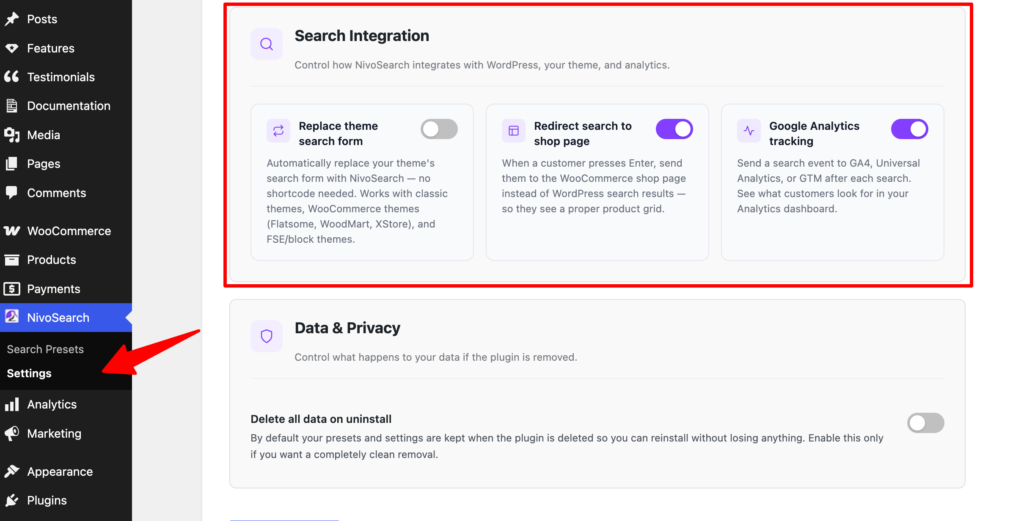
Step 1: Open Search Integration Settings
From your WordPress dashboard, go to:
NivoSearch → Settings → Search Integration
This page contains options for integrating NivoSearch with your WooCommerce store.
Step 2: Enable Replace Theme Search
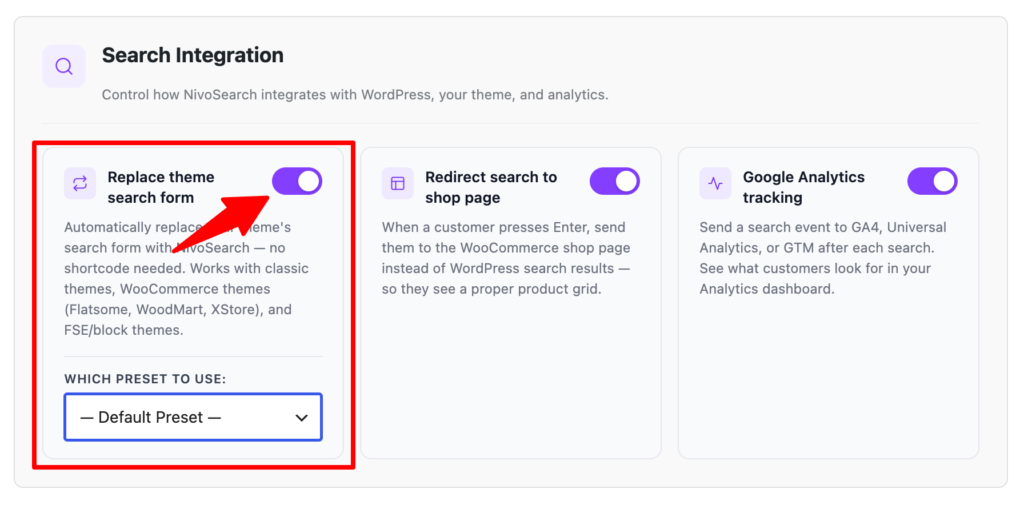
Find the Replace Theme Search option.
Turn the switch On.
When enabled, NivoSearch will automatically replace your theme’s default search form.
Step 3: Choose a Search Preset
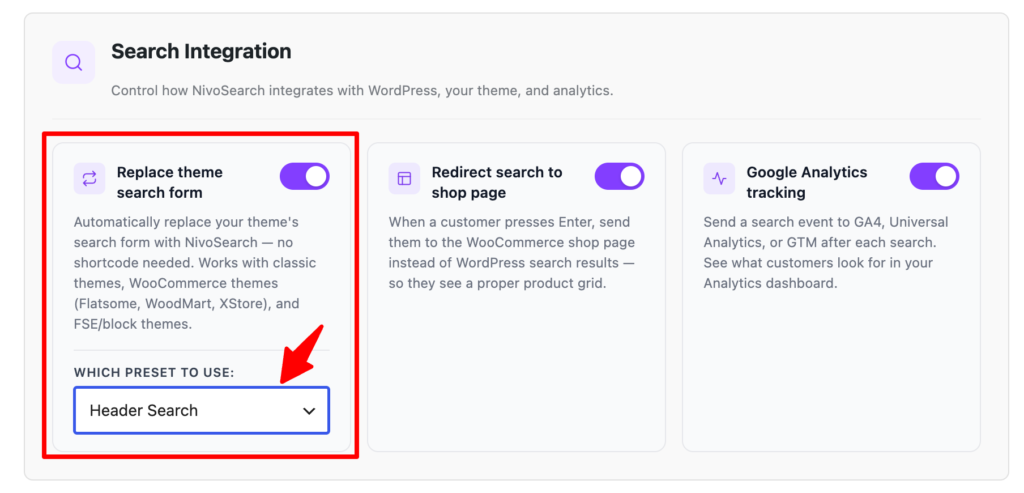
Select the Search Preset you want to use.
Every Search Preset has its own appearance, search settings, and display options. The selected preset will be used wherever your theme’s default search form appears.
Step 4: Save Your Changes
Click Save Changes.
Your website will now use the selected NivoSearch Search Preset instead of the default theme search form.
Result
After enabling Replace Theme Search:
- Your theme’s default search form is automatically replaced.
- Customers see instant product search results while typing.
- The selected Search Preset controls the search bar’s design and behavior.
- No theme files are modified.
When Should You Use This Feature?
Enable Replace Theme Search if you want to use the same NivoSearch search bar everywhere your theme displays its default search form.
If you only want to add a search bar to a specific page or location, use the NivoSearch shortcode or Gutenberg block instead.
Troubleshooting
The search bar didn’t change
Make sure:
- Replace Theme Search is enabled.
- A Search Preset is selected.
- Your changes have been saved.
- Your website cache has been cleared if you’re using a caching plugin.
My custom design isn’t showing
The selected Search Preset controls the appearance of the search bar.
If you want a different design, edit the selected Search Preset or choose another one.
Frequently Asked Questions
Does this modify my theme files?
No.
NivoSearch replaces the search form without editing or modifying your theme files.
Can I disable it later?
Yes.
Return to NivoSearch → Settings → Search Integration, turn Replace Theme Search off, and click Save Changes.
Your theme’s original search form will be restored.
Do I still need the shortcode?
No.
When Replace Theme Search is enabled, your theme’s existing search form is replaced automatically.
Use the shortcode only if you want to add additional search bars in other locations.