
Fuzzy Search helps customers find the products they’re looking for, even when they misspell a word or make a typing mistake.
If an exact search doesn’t return any results, NivoSearch automatically looks for the closest matching product names and suggests the correct search term. This helps reduce zero-result searches and makes it easier for customers to find the right products.
You can turn Fuzzy Search on or off at any time from the NivoSearch settings.
What Is Fuzzy Search?
Fuzzy Search is a smart search feature that understands words that are close to what a customer typed, even if they aren’t spelled correctly.
For example:
| Customer Searches | NivoSearch Finds |
|---|---|
| bleutooth | Bluetooth |
| headfones | Headphones |
| samsng | Samsung |
| wirless mouse | Wireless Mouse |
Instead of showing “No products found”, NivoSearch finds the closest matching products and displays them instantly.
How Fuzzy Search Works
When a customer searches your store, NivoSearch first looks for an exact match.
If matching products are found, those results are shown immediately.
If no matching products are found, Fuzzy Search automatically checks the search index to find similar words and returns the closest matching products.
When a better match is found, NivoSearch can also display a “Did You Mean?” suggestion to help customers search with the corrected term.
This process happens automatically and only when it’s needed.
Why Use Fuzzy Search?
Customers don’t always type product names correctly.
A simple spelling mistake can cause them to miss the product they want and leave your store.
Fuzzy Search helps by:
- Finding products despite typing mistakes
- Reducing zero-result searches
- Helping customers discover products faster
- Improving the shopping experience
- Increasing the chances of completing a sale
Enable or Disable Fuzzy Search
You can enable or disable Fuzzy Search with a single click.
Step 1: Go to: NivoSearch → Settings
Step 2: Find the Fuzzy Search option.
Step 3: Use the toggle to: Enable/Disable Fuzzy Search
Click Save Changes if required.
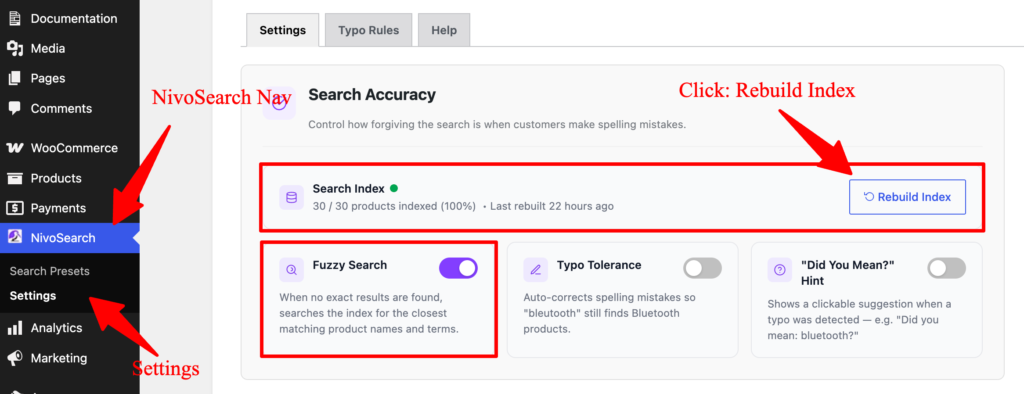
Rebuild the Search Index
Fuzzy Search uses a search index to find similar words quickly.
If you’ve imported a large number of products or made significant changes to your product catalog, rebuilding the search index ensures Fuzzy Search uses the latest product information.
To rebuild the index:
- Go to NivoSearch → Settings
- Click Rebuild Index
- Wait for the process to finish
Most stores only need to rebuild the index after large product imports or major catalog updates.
When Should You Disable Fuzzy Search?
For most WooCommerce stores, it’s recommended to keep Fuzzy Search enabled.
You may choose to disable it if:
- You only want exact search results.
- You’re testing your search configuration.
- Your store has a specific search workflow that doesn’t require fuzzy matching.
No. Exact matches are always shown first. Fuzzy Search only runs when no exact results are found.
No. NivoSearch uses an optimized search index, allowing Fuzzy Search to quickly find similar words without affecting your website’s performance.
No. In most cases, NivoSearch maintains the search index automatically. Rebuilding the index is only recommended after importing many products or making major catalog changes.