
The NivoSearch Gutenberg Block lets you add an instant WooCommerce product search bar to your WordPress pages and posts using the WordPress Block Editor.
You can choose an existing Search Preset directly from the block settings. No shortcode or coding is required.
Before You Begin
Make sure:
- NivoSearch is installed and activated.
- WooCommerce is installed and active.
- You have at least one published Search Preset.
Note: NivoSearch automatically creates a default Search Preset when the plugin is activated. You can use it immediately or create your own preset with custom settings.
Step 1: Open the WordPress Block Editor
From your WordPress dashboard, open the page or post where you want to add the search bar.
You can:
- Create a new page or post.
- Edit an existing page or post.
The WordPress Block Editor will open.
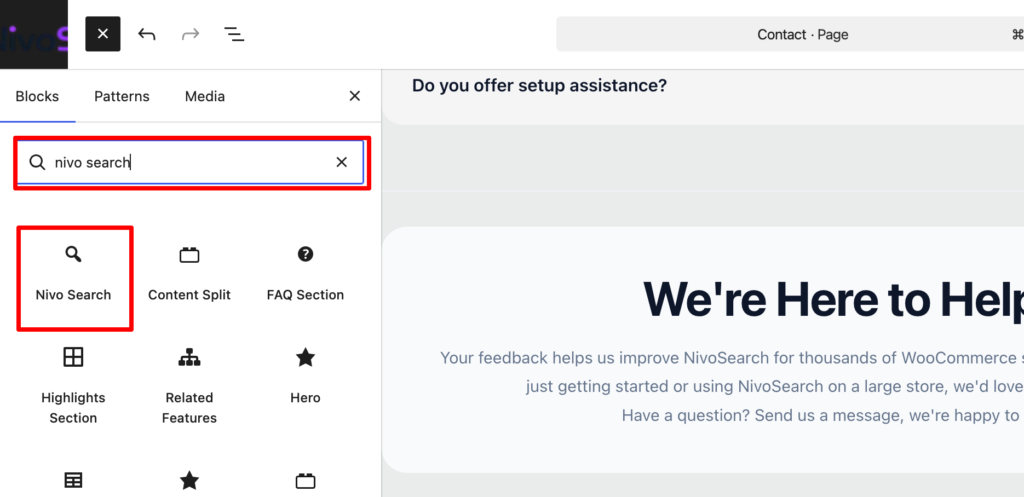
Step 2: Add the NivoSearch Block
Click the + button to add a new block.
Search for NivoSearch.
Select the NivoSearch block from the available blocks.
The NivoSearch search bar will now appear in the editor.
Step 3: Select a Search Preset
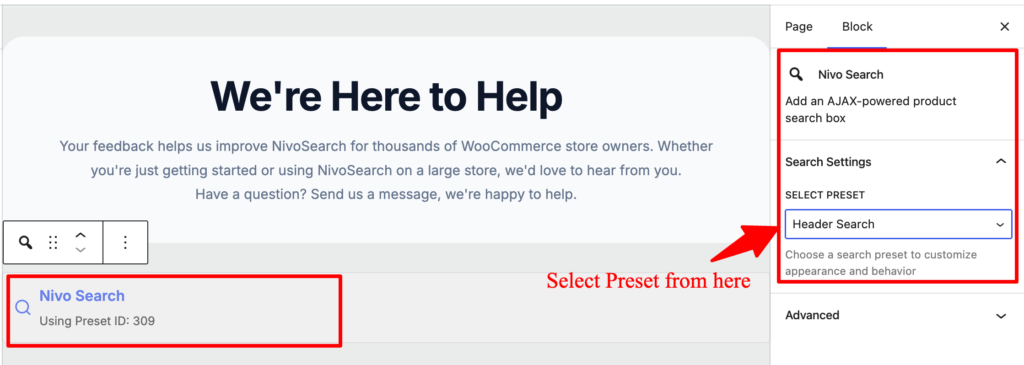
With the NivoSearch block selected, look at the block settings in the editor sidebar.
Choose the Search Preset you want to display.
The selected preset controls the search bar’s settings and appearance.
For example, you can select a preset that you’ve already configured for:
- Your website header
- Your homepage
- A product search page
- A landing page
Step 4: Publish or Update Your Page
Click Publish if you’re creating a new page.
If you’re editing an existing page, click Update.
Your NivoSearch search bar is now available on the published page.
Result
Visitors can now use the NivoSearch search bar directly from your page.
As they type, NivoSearch displays matching WooCommerce products in the instant search results.
The search experience is controlled by the Search Preset you selected.
Change the Search Preset
You can change the Search Preset at any time.
- Edit the page or post containing the NivoSearch block.
- Select the NivoSearch block.
- Choose a different Search Preset from the block settings.
- Click Update or Publish.
The search bar will then use the newly selected preset.
When Should You Use the Gutenberg Block?
Use the NivoSearch Gutenberg Block when you want to place a search bar in a specific location using the WordPress Block Editor.
For example, you can add it to:
- A homepage
- A product search page
- A landing page
- A blog page
- A custom content section
If you want to automatically replace your theme’s existing search form, use Replace Theme Search instead.
If you want to add a search bar using a shortcode, use Using the Shortcode.
Troubleshooting
I can’t find the NivoSearch block
Make sure:
- NivoSearch is installed and activated.
- You are using the WordPress Block Editor.
- You are searching for NivoSearch in the block inserter.
If you are using a page builder that does not use the WordPress Block Editor, use the NivoSearch shortcode instead.
The wrong search design appears
The NivoSearch block displays the Search Preset you selected.
To change the appearance or behavior, edit that Search Preset from:
NivoSearch → Search Presets
You can then update its settings and design.
Frequently Asked Questions
Do I need to know how to code?
No.
The NivoSearch Gutenberg Block can be added and configured directly from the WordPress Block Editor without writing code.
Do I need to use a shortcode?
No.
The Gutenberg Block provides an alternative way to add NivoSearch to your website. You can select a Search Preset directly from the block settings.
Can I use different Search Presets on different pages?
Yes.
You can add the NivoSearch block to different pages and select a different Search Preset for each block.
Can I change the Search Preset after adding the block?
Yes.
Select the NivoSearch block in the editor and choose another Search Preset from the block settings.
Does changing a Search Preset affect the Gutenberg Block?
Yes.
If the block uses a particular Search Preset, changes made to that preset will be reflected wherever that preset is used.